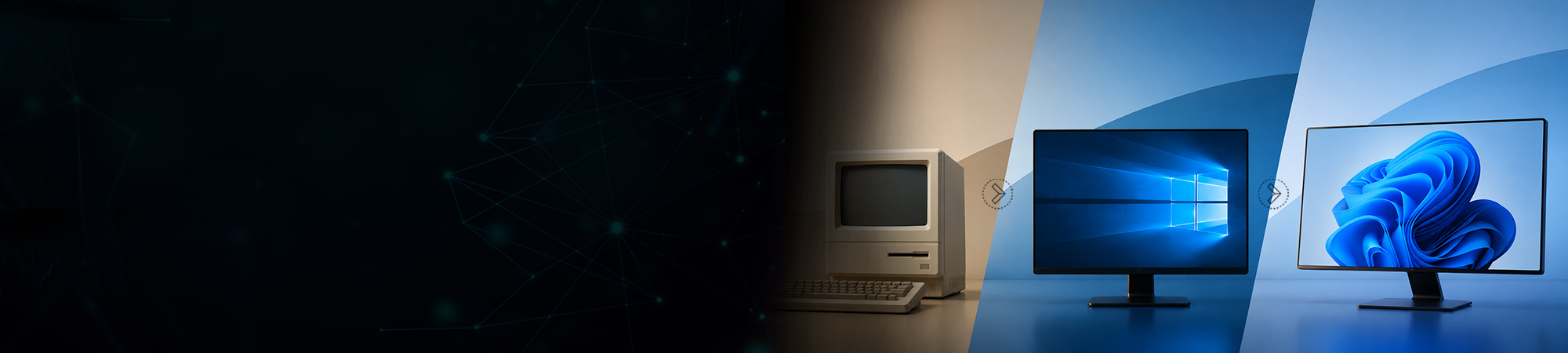
If you bought a 2017 Camaro and had the option to also drive a 1969 Camaro, would you drive them both? Of course you would. What if you had to find the 1969 Camaro on your own in order to drive it too? You have access to the shiny new car with more bells and whistles, so why on earth would you want to drive the older model? You know the 1969 is reliable, a proven, rock-solid car, and you don’t have to learn all the new features like you do driving the 2017 model. But having to find the older model makes it much more difficult.
Now, I’m talking cars, but this same scenario plays out when it comes to Microsoft software, buying a new operating system, but wanting to run older versions of the software on the new system. Basically, you want to downgrade your Microsoft software. When it comes to downgrading a Microsoft product there are a number of actions you need to consider. I am going to shed light on the process to help you find the solution.
A lot of our customers purchase new operating systems, but need to hang onto older applications for various reasons. One reason you might downgrade is familiarity and knowledge of the older version. Much like the 69 Camaro, you know the older Microsoft software version works great. You know the features and don’t need any training.
Another reason is many customers have their applications certified to work on the older operating systems. Updating to the new O/S involves 12 to 18 months of testing and certifying. They want to hang on to the older product as long as they can, but they want to run it on a new system.
I am focusing on the top issues that my customers run into when it comes to downgrading the Microsoft operating systems and discussing the best options to solve these issues.
The first issue involves media and key codes. For Original Equipment Manufacturer (OEM) system builder licensing, if you purchase Windows 10 Professional, the end-user has the right to install Windows 8.1 Pro and or Windows 7 Pro. The right to install Windows 8.1 Pro and or Windows 7 Pro is great, but the product only includes the media for Windows 10 and the key code on the Certificate of Authorization (COA) sticker is only for Windows 10. You have to obtain these older versions on your own. Let’s look at the EULA as it states “Neither the manufacturer or installer, nor Microsoft is obligated to supply earlier versions to you. You must obtain the earlier version separately. “ So there it is, the dilemma with downgrading.
Let me clarify a few important points on OEM Downgrading:
- Microsoft does not provide the older OEM key code
- Microsoft does not provide the older OEM media
- OEM licenses are generic and not tied to customers – they are tied to hardware
- OEM media requires OEM keys
- It’s OK to obtain an OEM key off an older COA and re-use it on another licensed system.
- When you use an older OEM key, it will fail internet activation and force telephone activation.
- OEM Windows 10 Pro allows downgrading to Windows 8.1 Pro and Windows 7 Pro, but not XP Pro.
- A Windows 10 Key will not work with a Windows 8.1 or 7 installation — you always must obtain the correct version key.
OEM Windows Server has all the same issues to work through, so if you plan on downgrading from Server 2016 back to 2012 R2, all the same rules apply.
Obtaining older versions of Microsoft software makes downgrading more difficult. The typical response from the customer sounds something like this:
“Where on earth would I obtain the older media and keys?”
My answer sounds something like this:
“You have a few different options to obtain the older product. Option one: You might already have an older copy from an older system. Look through your older systems and see if you have one around. Option two: If your company happens to own Open Volume licenses, you can use Open Volume media and an Open Volume key code to downgrade.”
“For option two, the license and key code must belong to your company, because Open Volume keys are tied to end-user companies. Do not make the mistake of using another end-user’s Open Volume key code to perform a downgrade on another customer’s servers/systems.”
“Option three is checking with me, Ken Marlin, here at Arrow. We keep a library of older versions handy, primarily for our integration customers, but we might be able to help.”
The second issue with downgrading Microsoft products involves obtaining key codes from Microsoft.
Obtaining older versions of Microsoft software makes downgrading more difficult. The typical response from the customer sounds something like this:
“I called Microsoft and they would not give me a key for the older product. I thought I was supposed to call them, give them my current key and they would give me an older key in return.”
My answer sounds something like this:
“Microsoft will not give you product keys over the phone. You are required to provide your own key and then when you perform telephone activation their automated system will give you an activation code which people confuse with a product key. Enter in the activation code and it will activate the license.”
I’ve been helping our customers through the downgrading process for years. If you find yourself confused or lost in the Microsoft downgrade process please reach out to us at Arrow Electronics, and we’ll get you back on track.
Let me recap the Microsoft downgrade process:
- Purchase a Windows 10 Pro license (The Home edition does not allow downgrade rights).
- Obtain the older media for 8.1 Pro or 7 Pro (We can assist in some cases).
- Obtain the older key for the 8.1 or 7 Pro (We can assist in some cases).
- Load the system with the older media and older key.
- Activate the license (Because you are using an older key it will fail internet activation).
- Choose telephone activation and activate the license via the telephone.
- You can use a single product key over and over on multiple systems.
- During the activation process it will ask how many computers are you loading the license upon and the correct answer is one.
- A product key is not a license. It is an enabler of a product and because you purchased a Win 10 Pro license you are loading one license per system.
- You apply the OEM Win 10 Pro COA sticker to the system and it is now fully licensed.
In closing, let me also clarify that this blog covers the OEM/ODR system builder channel downgrade process. Although the actual downgrade process is the same for the OEM embedded IoT channel, the embedded channel only allows downgrading to very old products that have already gone end of life. Otherwise, they have a process called “migration rights,” which I’ll cover in a separate blog.
If you have questions on downgrading a product from the OEM embedded IoT channel, please reach out to me and let me discuss it with you.
Sometimes driving that older car and making it last a few years longer is worth it!