


In the past, getting into home computer numerical control (CNC) usually meant obtaining a computer with a parallel port—not just a USB to parallel port adapter. Over time, it became harder to find these parallel ports, making it more difficult to set up at-home CNC machining.
But in 2009, a new open source alternative called “grbl” burst onto the scene, describing itself as, “a no-compromise, high performance, low-cost alternative to parallel-port-based motion control for CNC milling.” This software runs on Atmel ATmega328-based microcontrollers, which happen to power several very popular Arduino boards.
With an Arduino and a grbl shield that helps you take advantage of these control functions, you can run a powerful CNC machine (router, laser cutter, plasma, or even an exotic one-off) for somewhere in the order of $25 in control hardware. Once you know where to start, installation is incredibly easy.
Required Hardware Components
To install grbl, you’ll need the following items:
- Arduino Uno, Nano, Mega or other ATmega328-based board. These boards act as carriers for smaller removable modules with a stepper driver chip onboard, allowing you to replace each axis controller as needed.
- grbl shield, available in styles that fit all three previously listed Arduinos.
- One or more bipolar stepper motors to control.
- Implement such as a laser or router to act as the “business end” of your assembly.
- Machine/frame setup.
We’ll go over controlling a simple two-stepper setup to move in a gantry configuration. From there, there are nearly countless configurations and customizations you can set up to suit your needs.
Arduino Software Installation
The ATmega328 microcontroller, along with the driver modules, will control the machine directly, while a separate sending program running on a computer acts as a user interface. To install the Arduino portion of the software, follow these steps:
1. Download the Source code (zip) file, then extract it to your desktop. We’ll be working with grbl version 1.1f.
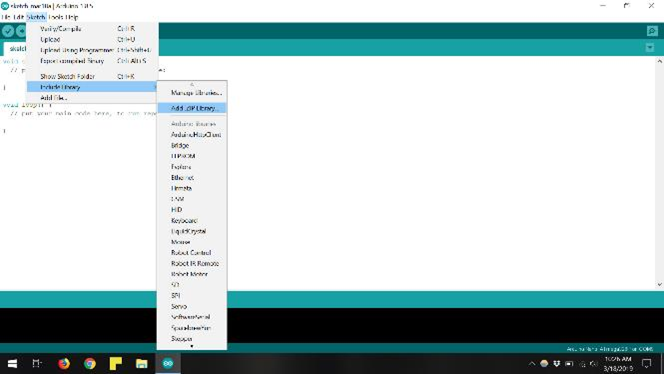
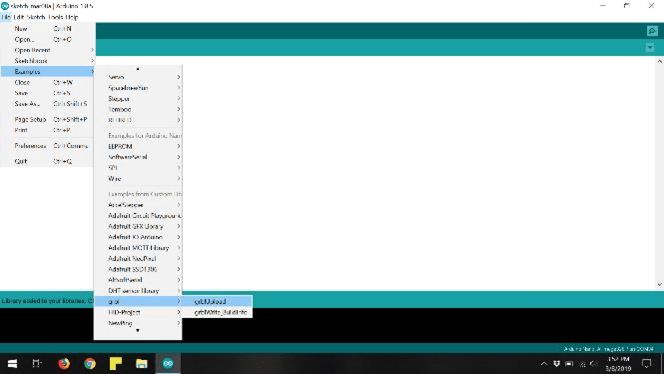
Caption: Extract the “.ZIP” library, then send grblUpload to your board.
2. Once extracted, navigate to Sketch ==> Include Library ==> Add .ZIP Library in the Arduino IDE.
3. Navigate to the “grbl” folder within the extracted file, then click on “Open” (note that this isn’t a .zip file, this command also works with folders).
4. Navigate to File ==> Examples ==> grblUpload, then upload the sketch to your Arduino board.That’s all there is to it; you’ve installed grbl on your Arduino. Now give it something to control and tell it what to do, using software running on a separate computer.
Setting up the Board
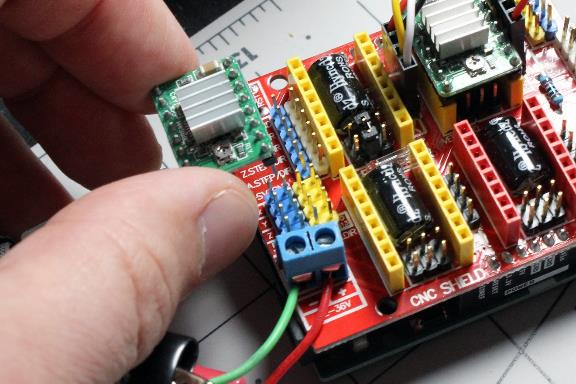
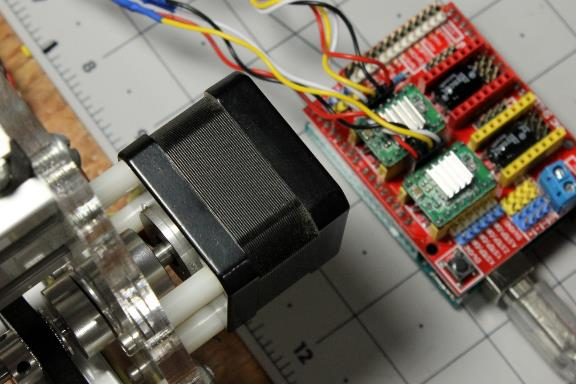
Caption: Grbl shield and driver modules. Note microstepping jumper.
If you’re using the Arduino Uno, follow these steps to set up your board:
1. Plug the grbl board into it as you would any other shield.
2. Plug the driver modules into the X/Y/Z/A slots as needed.
3. Connect the four lines from your stepper motors to the driver board. Arrange each phase side-by-side, and polarity does not matter. If the direction is reversed, simply swap each pair.
4. Attach a voltage source to the screw terminals as appropriate for your motors.
You’ll also see a set of jumpers under the driver sub-boards that dictate microstepping. We’ll discuss those later.
Computer Software
In addition to running the grbl on an Arduino, you’ll need to run software on your computer to communicate with your machine. You have many programs to choose from, but I decided to try a software program called “CNCjs,” and I was pleased with its results. With your Arduino connected, log on by selecting the appropriate COM port and Baud rate, which will be 115200 in the case of grbl1.1f.
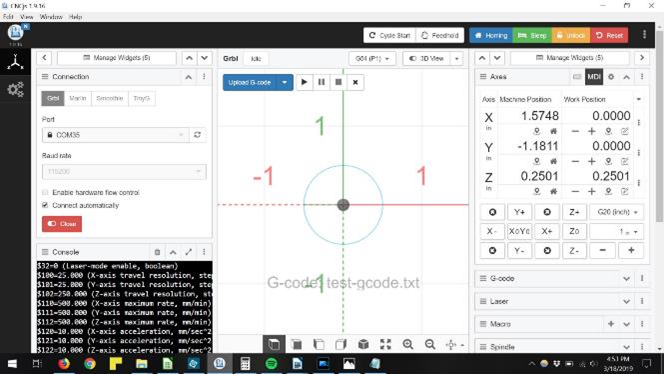
Caption: CNCjs circle G-code example
To test whether your machine works, find the set of arrow keys that jog the motors around. Go ahead and try manipulating them if they aren’t connected to anything. Be aware that without the proper tuning, the computer’s interpretation of 10mm might mean something much different in reality.
You can modify settings, such as steps/mm, in the console, and you can examine them by typing “$$” enter. To modify the variables, enter $X=Y. For example, setting 100 (which is steps/mm) is modified by inputting $100=50, setting this to 50steps/mm.
You’ll also want the software to generate automatic commands for your machine, or G-code, so the machine can run without human interaction. This allows advanced functions like cutting curved surfaces, truly unlocking the power of CNC. Search for computer-aided machining or “CAM” software, and you’ll be presented with several options.
- Autodesk Fusion360, for example, has CAM functionality.
- CamBam is a popular dedicated option.
For a quick test of your software’s G-code function, use this example code to move your device in a one-inch circle.
Motor Tuning
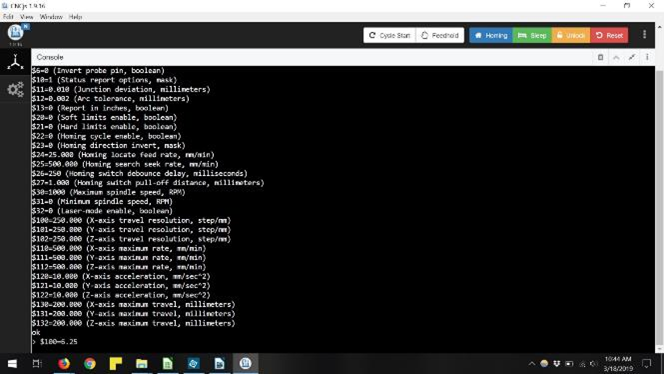
Caption: Use the console to modify the parameters.
If you purchased your CNC machine, you should be able to obtain information on motor steps/mm from the manufacturer. If not, a little bit of math is in order. Stepper motors used in this sort of setup typically turn 1.8 degrees per step, or 200 steps per revolution. In my setup, a 16-tooth sprocket turns each axis on a belt with a 2mm pitch. This means that each turn advances 16 teeth x 2mm = 32mm, resulting in 200 steps/32mm or 6.25 steps/mm.
You can work out screw (or other) drive setups in a similar manner, based on the thread pitch, i.e., how far one turn makes something travel in a linear distance.
From here, you may want a better resolution than what we can achieve with the given steps/mm available. There are three jumpers under the individual stepper drivers that allow for microstepping—where the motor advances at fractions of an ordinary step—from a half step to up to one thirty-second of a step depending on the driver you use.
Conclusion
This short introduction to using grbl with Arduino boards should help you get set up with a machine that moves in the X/Y plane. From here, your CNC-based creative opportunities are virtually limitless, from a traditional router or another workhorse, to exotic and specialized machines no one has yet dreamed up.